Online Transactions
Overview
Online Transactions provides a comprehensive view of all digital payment activities within the institution. This module displays transaction details, payment statuses, and enables administrators to manage, verify, and export payment data for academic fees, examination fees, and other applicable charges processed through digital payment gateways.
Key Features
→ Complete Transaction History with order details, payment methods, and status tracking.
→ Real-time Status Updates for successful, failed, and in-progress transactions.
→ Check Status Functionality to verify pending transactions with payment gateways.
→ Advanced Search and Filter by Order ID, Roll No., Admission No., or student name.
→ Excel Export Feature for comprehensive transaction data analysis and reporting.
Navigation Steps
Accessing Online Transactions
- On the left side of the main menu, go to Payments → Online Transactions.
- All transactions done online are displayed in grid form showing order details along with their status (Successful / Failed / Initiated).
- For transactions that have been initiated but whose status is still unknown, click on Check Status against it; this should change the transaction as successful or payment failure. In the rare event of no change in status due to a glitch, status will be updated in 24-48 hours (IN_PROGRESS status).
- Click on Export button to save online transactions data in MS Excel.
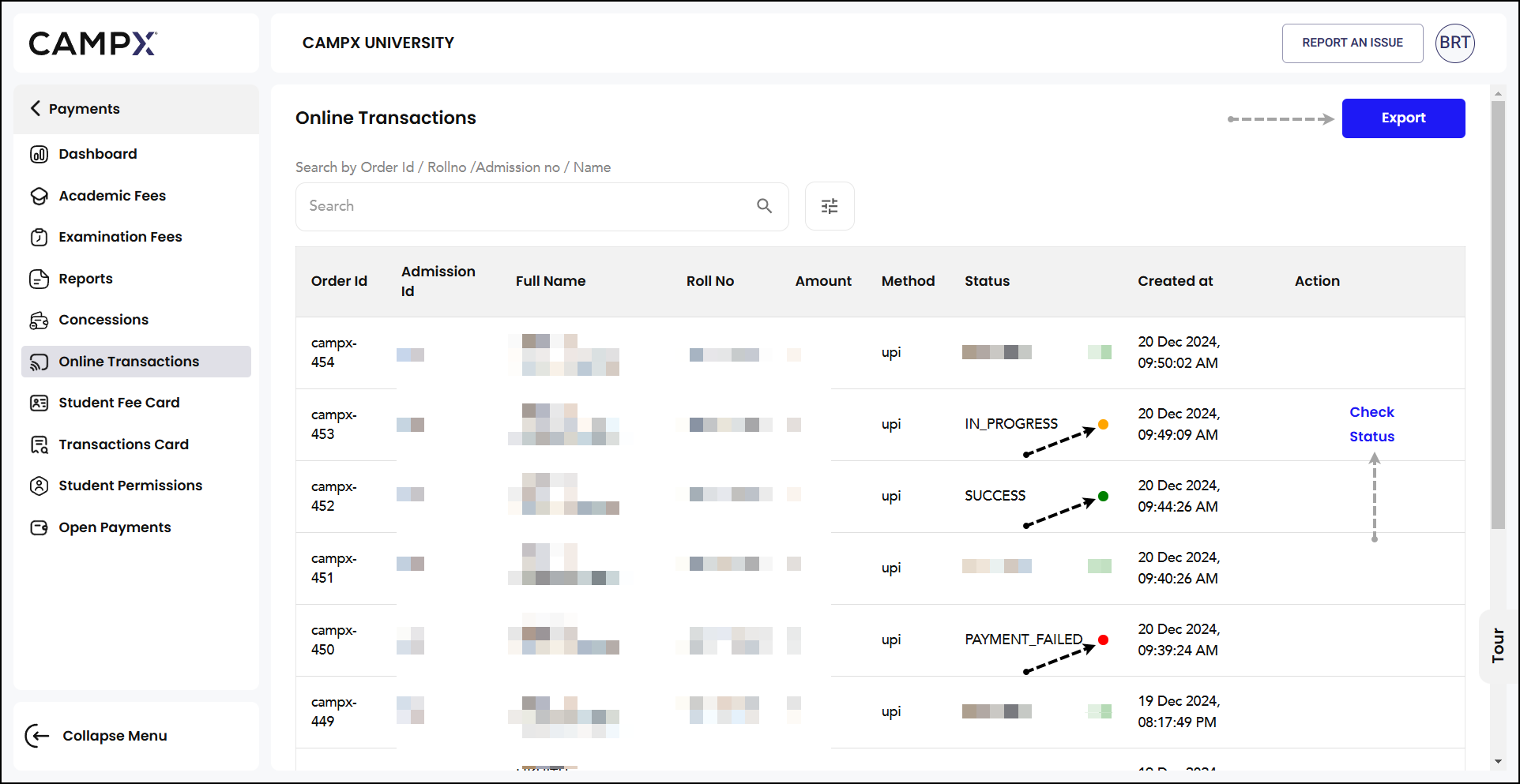
Transaction Status Information
Status Indicators:
- Success (Green): Transaction completed successfully and payment confirmed
- In_Progress (Orange): Transaction currently being processed by payment gateway
- Payment_Failed (Red): Payment failed due to technical issues or insufficient funds
Available Search Filters:
- Order ID
- Roll Number
- Admission Number
- Student Name
Expected Results
After accessing Online Transactions, users should be able to:
- View comprehensive transaction history in an organized grid format
- Identify transaction status through color-coded indicators (Green/Orange/Red)
- Search and filter transactions using multiple criteria for quick access
- Verify pending transaction status using the Check Status functionality
- Export transaction data to MS Excel for detailed analysis and record-keeping
- Access complete transaction details including order ID, student information, amounts, and timestamps
Important Notes
- Ensure proper administrative permissions for viewing transaction data
- Payment gateway connectivity is required for real-time status updates
- Check Status functionality connects directly with payment gateways for accurate updates
- Status changes from IN_PROGRESS to final status may take 24-48 hours in rare cases
- All transaction data is automatically logged for audit and compliance purposes
- Regularly check and update pending transaction statuses to maintain accurate records
- Use export functionality for periodic transaction reconciliation and reporting
- Filter transactions by date range for specific period analysis
Check Status Functionality
When you click Check Status for transactions with initiated or in-progress status, the system verifies the current status directly with the payment gateway or bank. Once verified, the status updates to either SUCCESS (green) or PAYMENT_FAILED (red). After this update, the Check Status option will no longer be available, as the final status has been determined.
- Real-time verification with payment gateway systems
- Automatic status change upon confirmation
- Status updates are permanent and cannot be reversed manually
Common Issues & Solutions
| 🛑 Issue | ✅ Solution |
|---|---|
| Check Status button not working | Verify internet connection and payment gateway connectivity |
| Transaction status shows IN_PROGRESS for extended period | Wait 24-48 hours for automatic update or contact payment support |
| Export feature not downloading Excel file | Check browser download settings and allow pop-ups for the site |
| Cannot find specific transaction | Use multiple search criteria (Order ID, Roll No., Name) and check date filters |
| Transaction data appears incomplete | Refresh the page and ensure proper user permissions for payment data access |
FAQs
Q: How long does it take for transaction status to update?
A: Most transactions update immediately when using Check Status. In rare cases, it may take 24-48 hours for automatic system updates.
Q: Can I manually change a transaction status?
A: No, transaction statuses are automatically determined by payment gateway responses and cannot be manually modified for security and accuracy reasons.
Q: What information is included in the Excel export?
A: The export includes Order ID, Admission ID, student details, payment amount, method, status, and transaction timestamps.
Q: Why can't I see some transactions?
A: Ensure you have proper permissions to view payment data. Some transactions may be restricted based on user access levels.
Q: What should I do if a transaction shows as failed but payment was deducted?
A: Contact the payment gateway support team immediately with the transaction details. The finance office should also be notified for manual verification.
Related Documentation
- Dashboard - Central payment control center and navigation
- Academic Fee - Tuition, hostel, and transport fee processing
- Examination Fee - Regular and supplementary exam fee management
- Reports - Comprehensive payment reporting and analytics
- Student Fee Card - Individual student payment tracking
Support
Need Help?
Access Support Portal from the footer and click on "Login with CampX."